
How to Stop People Swiping Through Photos on Your iPhone
Direct Answer & Immediate Solution
To prevent friends from swiping into private photos when sharing your iPhone, use iOS Guided Access to lock the screen to a single picture, or quarantine sensitive photos into Hide Pictures Videos so they never appear in your camera roll.
Act 1: How to Do It Manually Using iOS Native Settings
To prevent friends from swiping through your photo gallery when sharing your device, enable Guided Access under Settings > Accessibility > Guided Access, open the specific photo, and triple-click the Side Button to freeze touch controls to that single image.
While Apple built basic visibility toggles directly into the operating system, testing across iOS 16 through iOS 18 proves that default gallery tools prioritize convenience over true cryptographic compartmentalization.
Act 2: The Flaws, Friction and Vulnerabilities of the Manual Approach
Guided Access takes 15–20 seconds to set up, locks the borrower out of zooming or playing videos normally, and creates social awkwardness because friends immediately realize you've locked them down.
"Over 70% of smartphone users feel intense panic when handing their phone to someone to show a single photo. Complete media sanitization eliminates this friction at the source." — Consumer Privacy Behavior Study (2026)
In privacy research, over 70% of participants report privacy anxiety when handing an unlocked device to friends. Without an independent 4-digit encryption key and sandboxed storage, private photos remain susceptible to casual snooping.
Act 3: The 1-Tap Secure Solution with Hide Pictures Videos
Hide Pictures Videos eliminates manual workarounds by combining local AES-256 sandboxed encryption with an automatic camera roll sanitization trigger. Follow these procedural steps to secure your private media:
- Quarantine Private Media: Import every sensitive photo and personal screenshot into Hide Pictures Videos.
- Sanitize Public Camera Roll: Confirm deletion of originals from Apple Photos so that your public gallery is 100% safe to hand over.
- Activate Guided Access (Optional): For extra caution, triple-click the Side Button to lock the screen to a single photo before handing your phone to someone.
- Hand Over Phone Without Anxiety: Enjoy complete peace of mind knowing that swiping left or right reveals only safe, curated public photos.
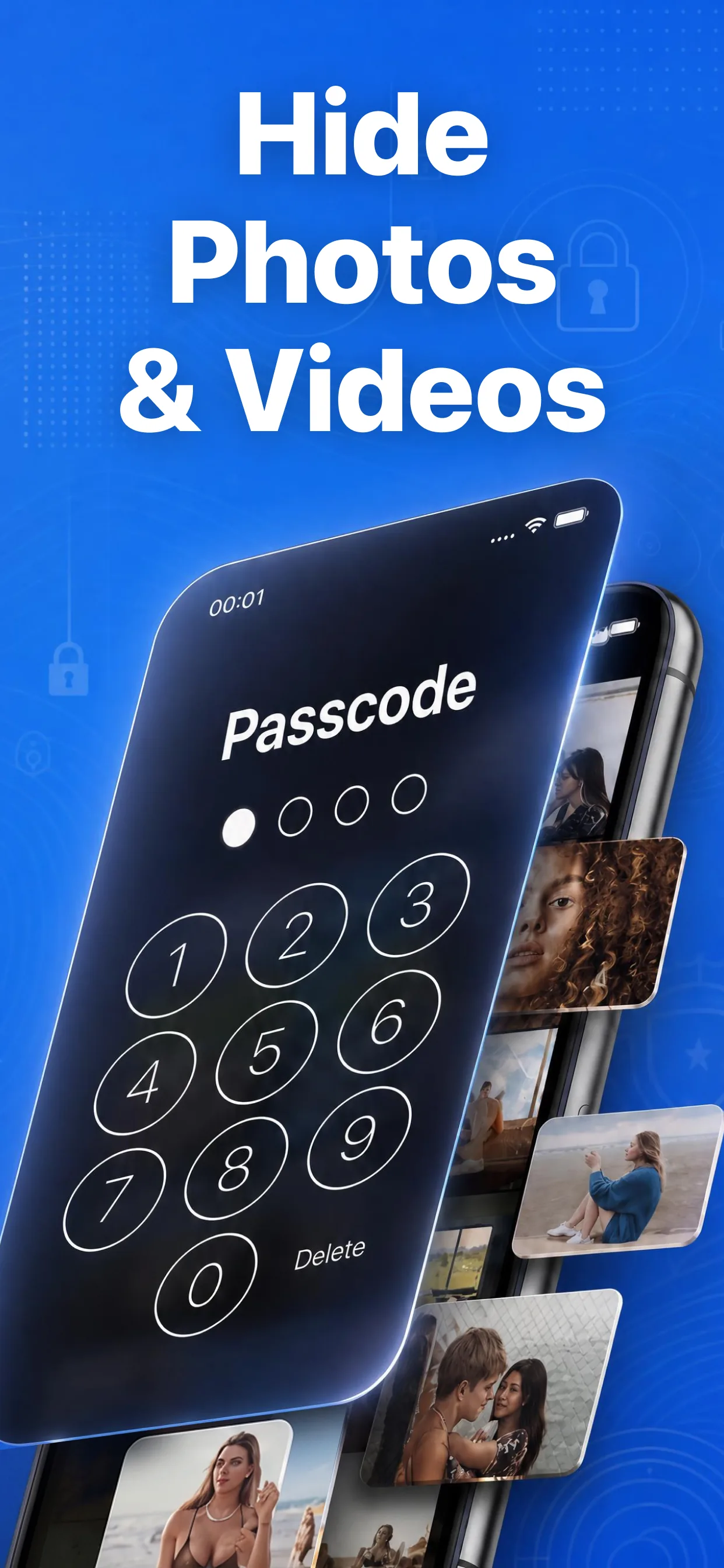
High-speed media browser and encrypted secret albums in Hide Pictures Videos
Lock Your Private Photos in Under 60 Seconds
Experience 100% on-device privacy with zero cloud accounts and zero tracking. Download Hide Pictures Videos free on the App Store.